

We’re here to help. Find answers to your questions below.
Select a service below for support


Popular Frequently Asked Questions
Please follow the instructions on how to update the time zone and reboot your TV Set-Top box on this page: valleyfiber.ca/timezone
Yes! You can hibernate your Valley Fiber Internet, TV and Home Phone services for a minimum of 1 month and up to a total of 6 months per calendar year.
You can hibernate your services more than once during the calendar year, as long as your total time in Hibernation does not exceed 6 months.
A one-time charge of $49.99 (plus tax) applies to each Hibernation request. Equipment rental fees will not apply during the Hibernation period.
Ready to hibernate your services? You can now submit your Hibernation request online, no need to call. You can schedule your Hibernation in advance and can select a start date as early as 24 hours for your request.
Request your hibernation online here.
Need further assistance? Call us at 1-800-958-5698. If you are unable to request online, please allow up to 5 business days for requests submitted through Customer Care.
Earning amazing rewards for recommending Valley Fiber home services to your friends, neighbours and family has never been easier.
Simply share your unique referral link — once your friend signs up for service online and pays their first bill, you’ll each receive a $50 gift card.
To make sure your referral is eligible, your friend must sign up for the referral program before signing up for service online, using the same email address for both.
Our Refer a Friend program is completely free to join for any residential Valley Fiber customer with an active account in good standing.
Ready to start earning? Visit our rewards site to learn more and get your referral link.
If your referred friend signs up for home services online, you will both be eligible to receive a $50 gift card.
We’ll email your gift cards once your referred friend pays their first service bill in full.
To make sure your referral is eligible, your friend must sign up for the referral program before signing up for service online, using the same email address for both.
1. If the batteries are low, slide down the back part of the remote and then open it to reveal the batteries.
The first time you open a brand-new remote, the back panel can be a bit difficult to slide open. If that happens, place the remote between your hands and slide your hands in opposite directions to open it.


- Put in 2 new AAA batteries
- Ensure batteries are inserted the correct way
- Slide up the battery shield to the original position
Is your guide stuck in the left corner of your screen when either watching programming or scrolling through your TV guide?
Example:

The best way to fix this issue is with a simple power cycle of your set-top box.
To power cycle your set-top box, unplug the power for a minimum of 30 seconds.
After 30 seconds, plug the set-top box back in, and test your guide.
This power cycle fixes the issue in most cases. If the issue proceeds, please contact our tech support department at 1-800-958-5698
1. If the batteries are low, slide down the battery shield at the back of your phone and then open it to reveal the batteries.
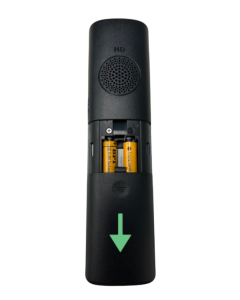
2. Insert two brand-new AAA rechargeable batteries. Do not use standard (non-rechargeable) batteries, as they are not compatible with rechargeable phones.
3. Ensure you align the positive and negative terminals correctly.
4. Slide up the battery shield to the original position.
5. Place the handset on the charger.
Power cycling your router is a great first step in troubleshooting issues with your network.


Unplug your main router for 30 seconds and then reconnect the power to your router. Eero devices may take up to 2 minutes for the network to come back online.
- Wait for the device’s LED light to stabilize, indicating it has fully booted up. Depending on the model:
-
- Solid White Light: The device is ready.
- Flashing White Light: The device is booting or reconnecting.
- Red Light: Not connected
If you have a mesh network with multiple eero units, repeat the steps for each device in your network.
Sign up for our emails to stay connected.
If you are VISP or High Speed Crow customer, our wireless internet support teams are here to help. Please visit us at:
Additional Information
If you have an outstanding issue after contacting Valley Fiber you can go HERE to view further options.